

Before You Begin
Your organization must connect its Slack workspace and add Confidence to your channel. You can follow Connect Your Slack Workspace and Add Confidence to a Slack Channel. You also need access to the connected Confidence workspace, and your Slack and Confidence accounts must use the same email address. If your organization connected Slack already, you can start asking questions. Connecting your personal Slack account for notifications is a separate setting.Ask a Question
Mention@Confidence followed by a question:
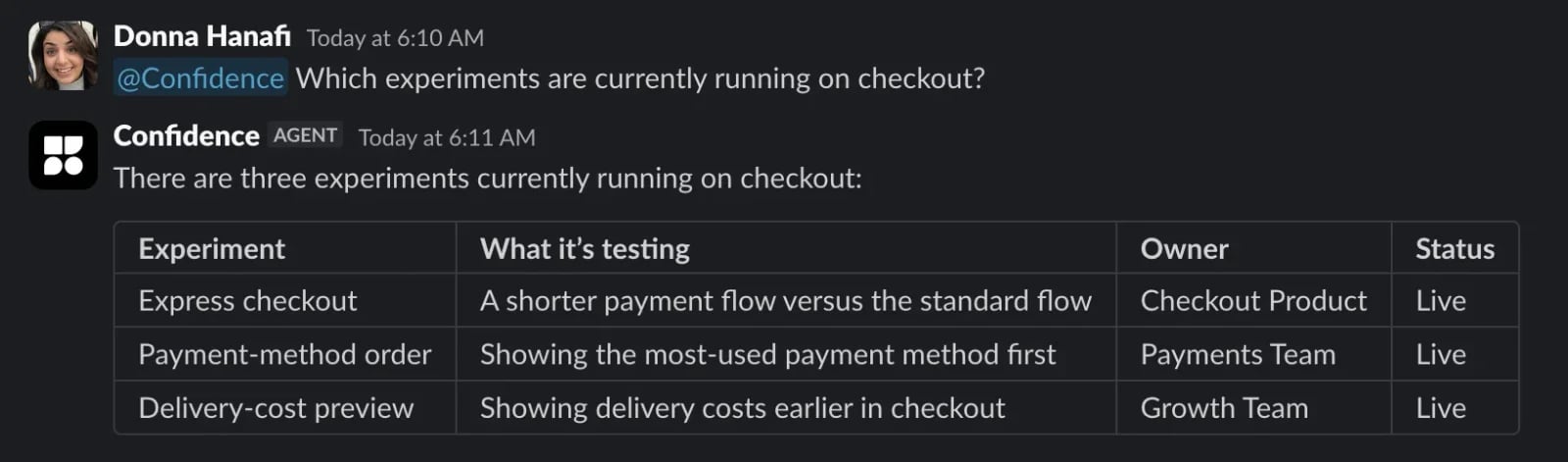
Ask for a status check without leaving the team's conversation.
- “Summarize the results of the onboarding experiment.”
- “How is the checkout-v2 flag configured?”
- “Which metrics does this experiment use?”
- “What does sample ratio mismatch mean?”
Continue the Investigation
Ask follow-up questions in the same thread. Mention@Confidence again when replying in a channel:
Move From Discussion to Action
Ask Confidence to help configure resources or prepare an experiment: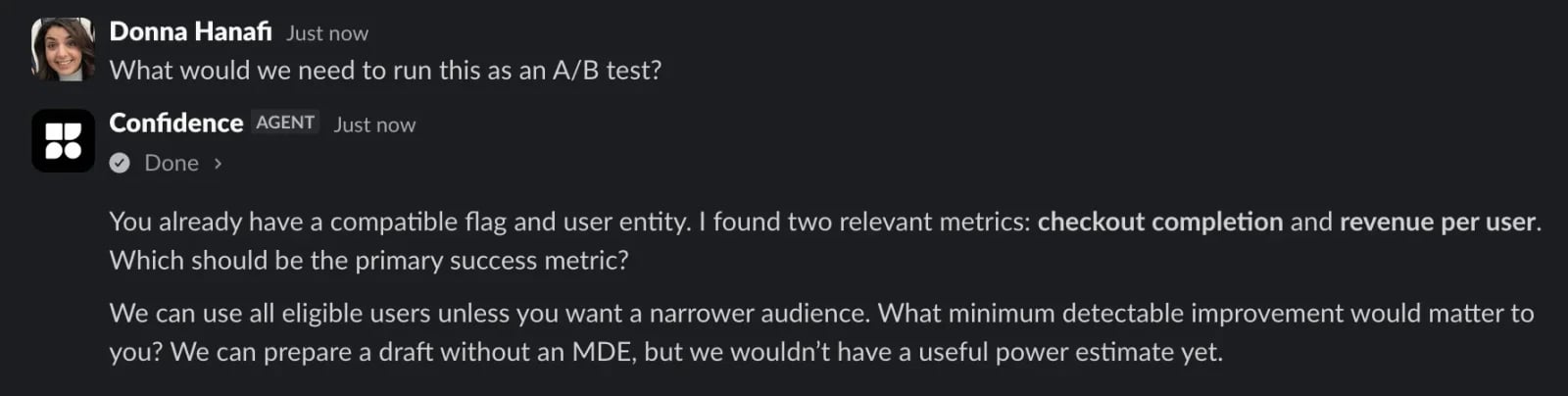
Confidence identifies the remaining choices needed to prepare an experiment.
Investigate Product Behavior
Use Insights and Recordings to explore what users experience: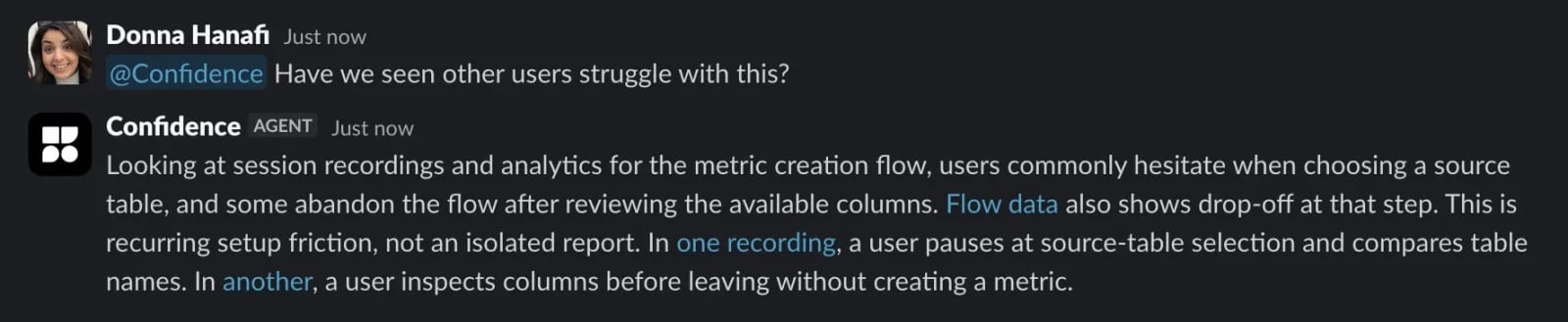
Combine analytics and recording evidence to investigate a product question.
Message Confidence Directly
Open the Confidence app in Slack and send it a direct message. You don’t need to mention@Confidence in a one-to-one conversation.
Group direct messages aren’t supported.
Direct messages use your personal Confidence workspace selection.
This selection is separate from the connection used for personal notifications.
Choose a Confidence Workspace
If your Slack workspace connects to multiple Confidence workspaces, Confidence might ask you to select one. In a channel, send one of these messages:
The selected workspace applies to everyone using Confidence in that channel.
In a direct message, the same commands set or clear your personal default. You can omit the
@Confidence mention in DMs.
Understand Access and Visibility
Confidence checks each person’s permissions, including when several people ask questions in the same thread. Installing the Slack app doesn’t grant additional access to Confidence resources. Responses in channels are visible to channel members. Use a direct message or an appropriate private channel for confidential questions. Review important findings before making decisions or changing production resources.Receive Automatic Updates
Questions are separate from automatic notifications. To receive updates without asking:- Personal Slack Notifications for mentions, replies, and review requests.
- Create an activity feed for resource changes.
- Configure surface notifications for activity on a surface.
- Use Pulses for refreshed analytics summaries.
Related Resources
Connect Your Slack Workspace
Install the app and manage its connection.
Troubleshoot Slack
Resolve connection, access, and delivery problems.
Work with the Confidence Agent
Organize ongoing work with projects and shared context.
Insights
Explore warehouse data in conversation.