

- Average metrics calculate the means of the treatment groups. The calculation takes the average of the entity measurements after first aggregating within each entity. For example, a user can have multiple data points. In an average metric, these data points are first aggregated separately for each user, for example, by summing the data points. In an experiment, the calculation averages the within-user aggregated measurements in each group. The average metric is the most common type of metric.
- Ratio metrics calculate the ratios between the numerator and the denominator measurements in the treatment groups. The calculation separately aggregates the numerator and denominator measurements across entities. For example, let the numerator measurement be the number of successful searches, and the denominator measurement be the number of searches. The two measurements measure the user entity. The ratio metric calculates the ratio of the total number of successful searches to the total number of searches.
Choosing Between Average Metrics, Ratio Metrics, and Entity Relations
Use Average Metrics when:- Analyzing at the same level as randomization (user-level metrics with user randomization)
- You want the average value per entity
- Each entity has the same weight in the analysis
- Analyzing at a finer granularity than randomization (order-level metrics with user randomization)
- Calculating rates or per-unit averages (click-through rate, average order value)
- You have one-to-many relationships between randomization and measurement units
- ONLY for connecting anonymous users who later authenticate
- You need to track the same user transitioning from anonymous to authenticated state
- Never for general entity mapping or metric reuse across different experiments
Filtered Metrics
Filter rows in fact tables to create more specialized metrics. For example, create an unfiltered metricNumber of purchases and a filtered version Number of purchases on mobile. You can create filters using any combination of logical
expressions based on fact table columns.
You can only filter metrics on
measurements and dimensions available in the same fact table that you create the metric
from.
Time in Metrics
All metric aggregates measurements over some time window. In Confidence, you can configure the behavior of the time window in three ways: Include the user in metrics results:- At the end of a window. Example: Second and third days’ consumption. Includes all consumption during the second and third days after exposure. Includes an entity in the results at the end of their third day of exposure.
- Cumulatively during a window. Example: Second and third days’ consumption. Includes all consumption during the second and third days after exposure. Includes an entity in the results at the beginning of their second day of exposure.
- Cumulatively (no window). Example: Average order value. Includes all orders after exposure. Includes all exposed entities.
For logged-in, or in other ways persistent users, it often makes sense to
consider a time window. Time-window based metrics make interpretation easier,
as you can be sure that they include the same measurements (in relation to
exposure) for all entities included in the metrics results. For experiments on
short-lived entities like short-lived cookies, using windows over for example
several days makes little sense, as one user is unlikely to come back. Even
if they do, they no longer have the same identifier. In such cases,
windows are redundant.
The figure describes how to choose the time window behavior. See more details
about the trade-offs below.

Windows-Based Metrics
Window-based metrics measure behavior over a time window, where time is relative to exposure. To define a window-based metric you need to specify an exposure offset and an aggregation window. These parameters specify when the aggregation of data should start relative to exposure, and for how long the aggregation should be applied. Illustration of exposure offset and windows in metrics.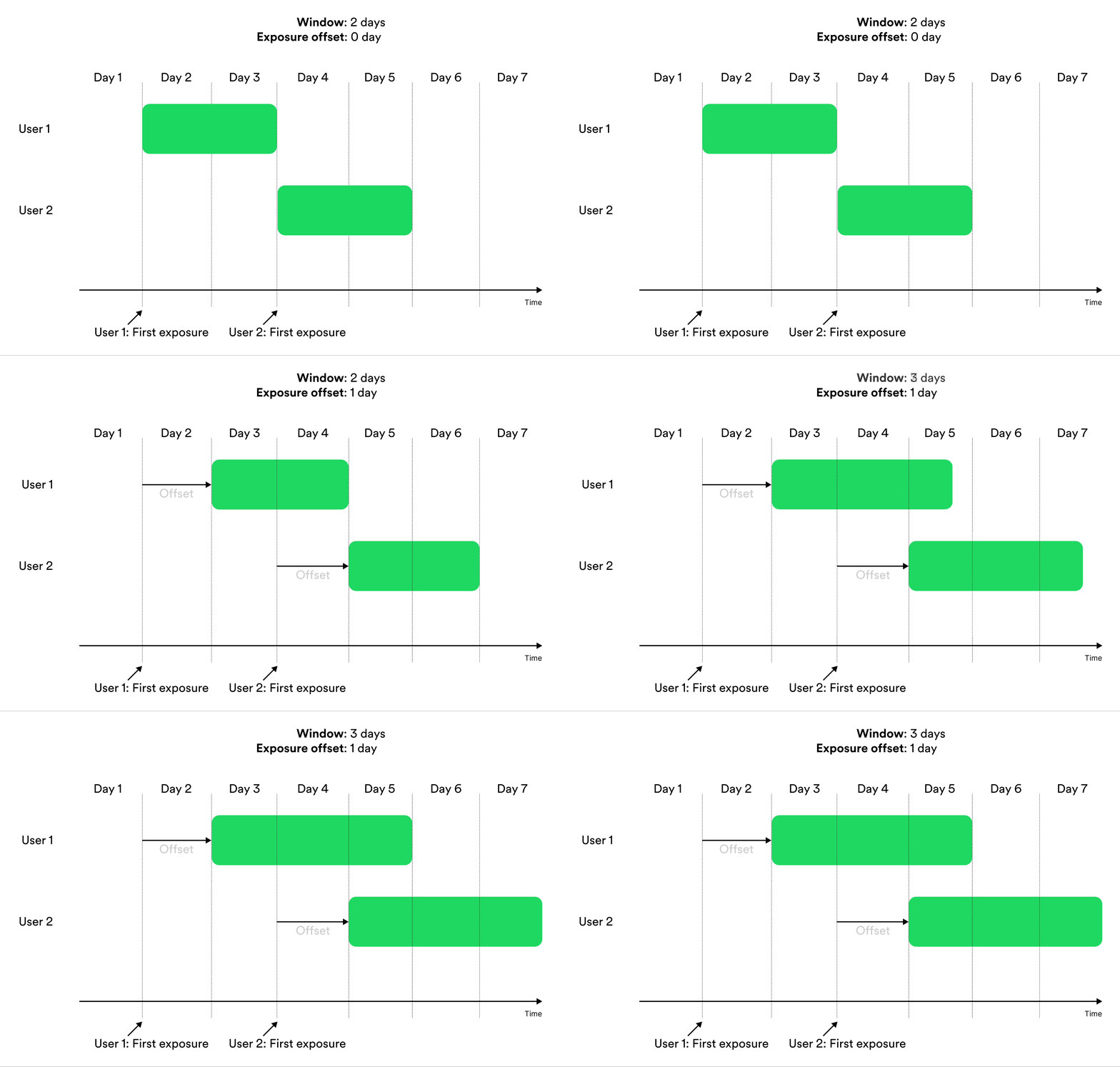
At the End of a Window or Cumulatively During a Window
You can select two types of window-based metrics in Confidence: At the end of a window and Cumulatively during a window.At the End of a Window
Metrics that include entities in the results At the end of a window include the measurements from exposed entities at the end of the window used by the metric.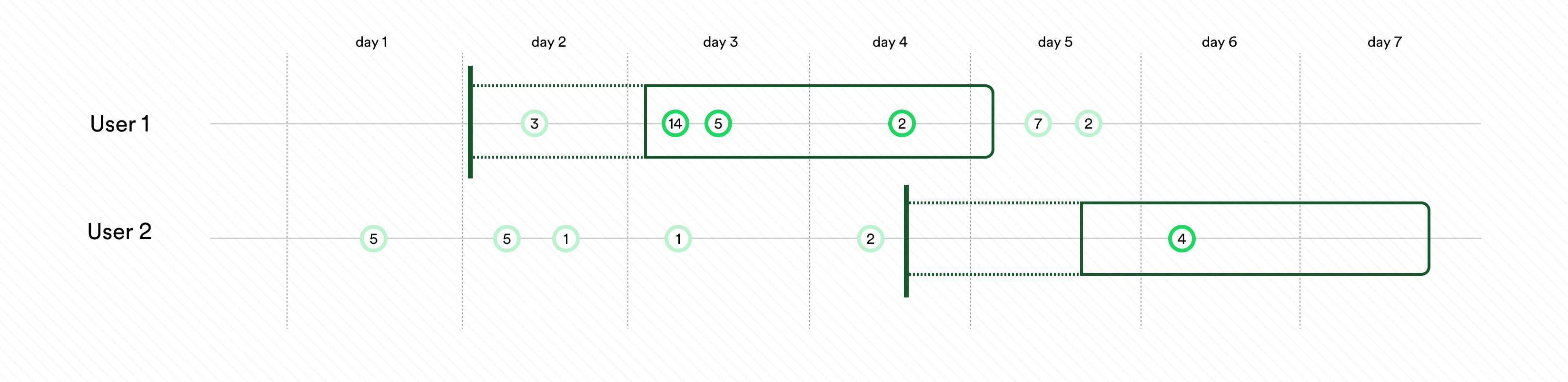
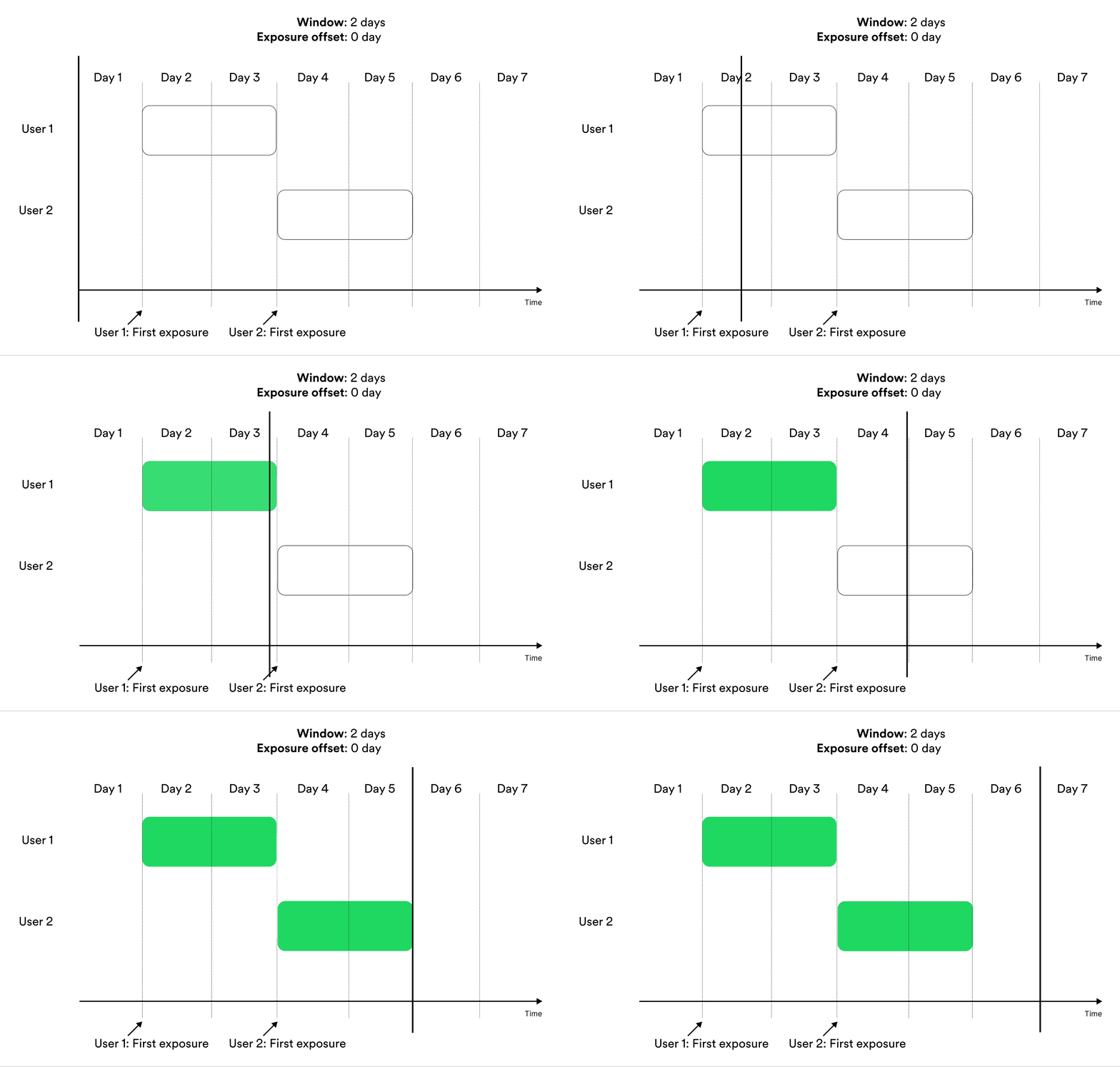
‘At the end of a window’ metrics show no data before
exposure offset + aggregation window - 1 time units after the start of the experiment.
For example, if you create a metric that measures user behavior during the second week after exposure, the first results
you see for the metric are available 14 days after launch. Before that day, no unit has been exposed for two weeks.Cumulatively During a Window
Metrics that include entities in the results Cumulatively during a window include measurements from exposed entities cumulatively during the window. Illustration of including the user in metrics results cumulatively during a window. The metrics result at the given day of the experiment include the measurements in the green parts.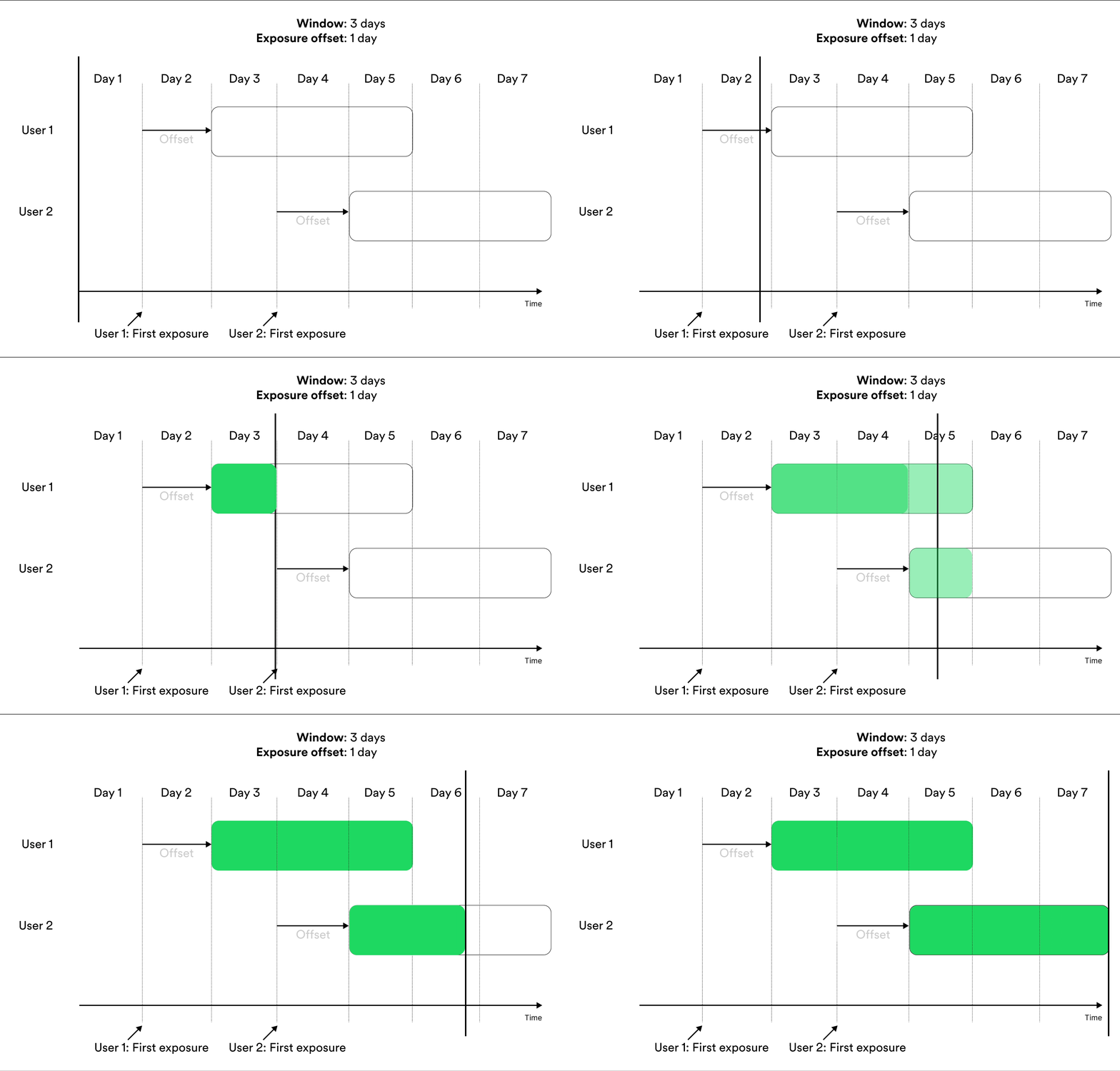
‘Cumulatively during a window’ metrics show no data before
exposure offset time units after the start of the experiment. After that, they
show the data available for each entity in the time window. For example, if you
create a metric that measures user behavior during the second week after
exposure, the first results you see for the metric are available 7 days after
launch, at which the metric results include measurements from the eighth day of exposure
for the users exposed on the first day of the experiment.Trade-Offs Between At the End of a Window and Cumulatively During a Window
Metrics that use At the end of a window are the most rigorous, because they include exactly the same measurements for the entities included in the metric results at any given time. Metrics that use Cumulatively during a window return results earlier because they don’t need to wait for the window to end. The downside is that they are harder to interpret as the result doesn’t measure each entity over the same length of time after exposure. If all entities are eventually exposed for at least the upper limit of the window, the two types of window metrics give the same results at that point. For this reason, the Cumulatively during a window option offers a compromise between early results and ease of interpretation.Cumulatively (No Window)
Metrics that are not window-based include all measurements from all entities in the metric results as soon as an entity is exposed. Metrics without windows are suitable when entities are short-lived, as with for example cookie-based entities. In this case, following the same entity over time is often difficult which makes metric windows redundant. Illustration of including the user in metrics cumulatively without any window.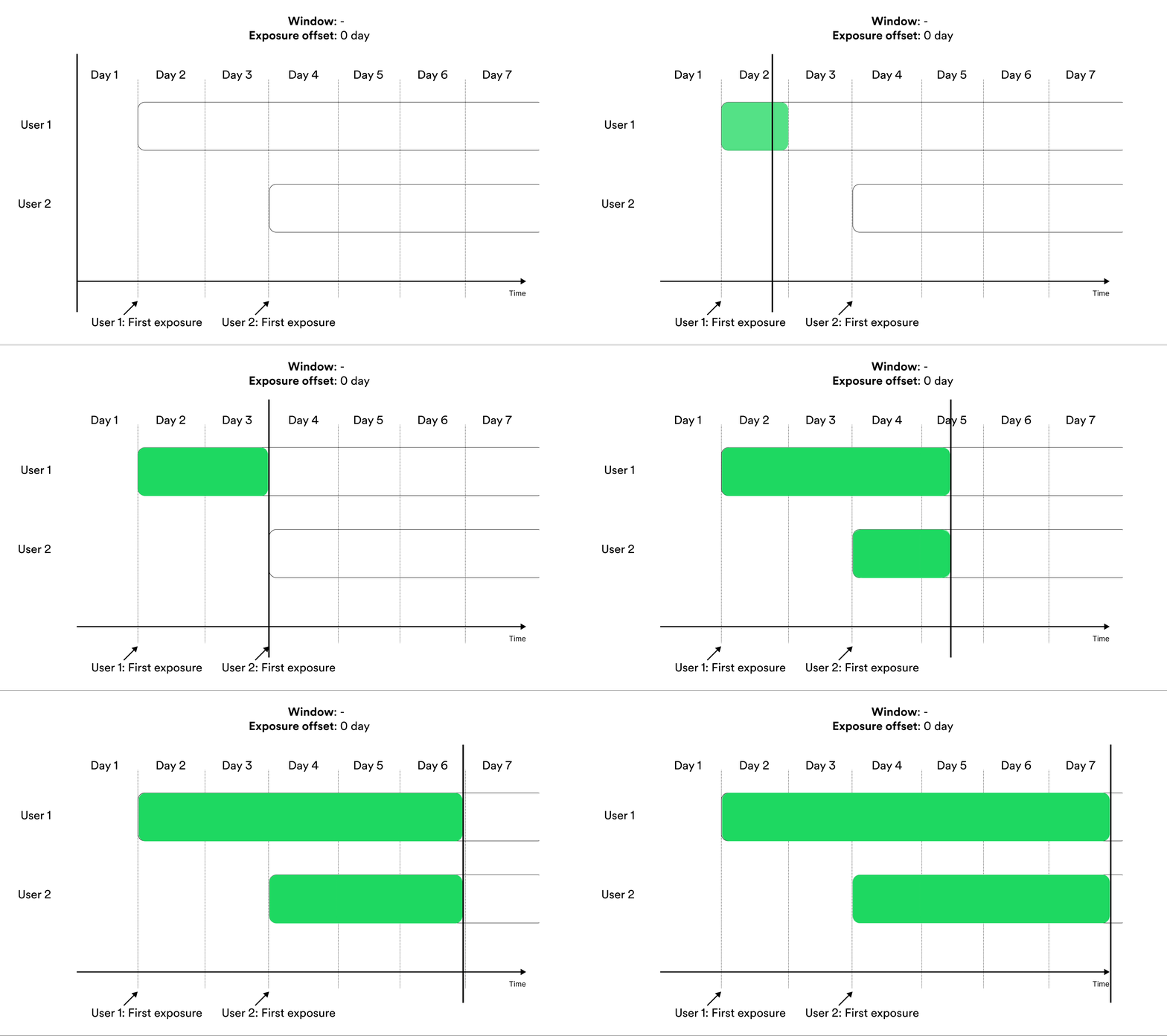
In cumulative metrics (without window), some entities are always measured
over longer periods than others due to that not all entities are exposed at the
same time. This makes these metrics hard to interpret. Only use these metrics
when entities are short-lived.
Average Metrics
An average metric measures the average value across the different entities. Typically, you have multiple facts measured within an entity. You must select what aggregation to apply within the entity before calculating the average across entities. Examples of average metrics include:| Metric | Description |
|---|---|
| Average minutes played per user | Sum the minutes played for each user, then average across users |
| Share of users that were active | Count the number of events per user and map to 1 if the user was active and 0 otherwise, then average across users |
| Conversion rate | Count the number of conversion events per user and map to 1 if the user converted and 0 otherwise, then average across users |
Within-Entity Aggregation
You can select to aggregate multiple facts within entities using one of:| Aggregation | Description |
|---|---|
| Average | Average of the non-null values |
| Count | Count the non-null values |
| Count distinct | Count the number of distinct non-null values |
| Approximate count distinct | Approximate count of distinct non-null values from a HyperLogLog sketch. |
| Sum | Sum of the values |
| Max | Maximum of the non-null values |
| Min | Minimum of the non-null values |
| Entity | Value |
|---|---|
| A | 1 |
| A | 3 |
| A | 8 |
| A | null |
| B | 3 |
| B | 1 |
| B | 29 |
- Average
- Count
- Count distinct
- Approximate count distinct
- Max
- Min
- Sum
The average calculates the average of the non-null within entity values. The example table would result in
The metric value is (4 + 11)/2 = 7.5.
| Entity | Value |
|---|---|
| A | 4 |
| B | 11 |
Ratio Metrics
Ratio metrics aggregate the numerator and denominator separately across all entities, without first aggregating within entities. Ratio metrics differ from average metrics, which first aggregate within each entity.When to Use Ratio Metrics
Use ratio metrics when:- Your unit of analysis is more granular than your randomization unit
- You want to analyze metrics at the order, session, or page view level while randomizing at the user level
- You need to calculate metrics like average order value or click-through rate
- You have one-to-many relationships between your randomization unit and measurement unit
- Use a ratio metric with
SUM(pickup_time) / COUNT(order_id) - This correctly accounts for users having different numbers of orders
- The variance calculation properly handles the user-level randomization
Note: Ratio metrics differ from entity relation tables, which only connect anonymous to authenticated users. If you’re trying to analyze orders while randomizing on users, use ratio metrics, not entity relation tables.
| Metric | Description |
|---|---|
| Click-through rate | Sum a binary measurement indicating a click in the numerator, count the number of events, or impressions, in the denominator |
| Average order value | Sum the order value in the numerator, count the number of orders in the denominator |
Numerator and Denominator Aggregations
You can select to aggregate multiple facts for the numerator and denominator using one of:| Aggregation | Description |
|---|---|
| Average | Average of the non-null values |
| Count | Count the non-null values |
| Count distinct | Count the number of distinct non-null values |
| Approximate count distinct | Approximate count of distinct non-null values from a HyperLogLog sketch. |
| Sum | Sum of the values |
| Max | Maximum of the non-null values |
| Min | Minimum of the non-null values |
| Entity | Measurement A | Measurement B |
|---|---|---|
| A | 1 | 8 |
| A | 3 | 3 |
| A | 8 | 2 |
| A | null | 3 |
| B | 3 | 9 |
| B | 1 | 1 |
| B | 29 | 2 |
Numerator
The numerator examples use measurement A from the example table above.- Average
- Count
- Count distinct
- Approximate count distinct
- Max
- Min
- Sum
The average calculates the average of the non-null within entity values. The example table would result in
The numerator value is 4 + 11 = 15.
| Entity | Value |
|---|---|
| A | 4 |
| B | 4 |
Denominator
The denominator examples use measurement B from the example table above.- Average
- Count
- Count distinct
- Approximate count distinct
- Max
- Min
- Sum
The average calculates the average of the non-null within entity values. The example table would result in
The denominator value is 4 + 4 = 8.
| Entity | Value |
|---|---|
| A | 4 |
| B | 4 |
Ratio
- Click-through rate
- Average order value
Assume that measurement A measures some aspect of a click and is non-null if the entity (like a visitor or a user) clicked.
Measurement B measures the corresponding impression and some aspect of it.
To calculate a click-through rate, use a count aggregation for the numerator and a count aggregation for the denominator.
The ratio is the number of clicks divided by the number of impressions, which equals (3 + 3)/(4 + 3) = 6/7.
Metric Parameters
Aggregation Window
The aggregation window controls the size of the window to include facts from. This time is always relative to the time of exposure for the entity. Confidence only calculates metrics for an entity at the end of the window. For example, if the aggregation window is 1 hour, an entity exposed on 14:50 would find facts between 14:50 and 15:50.Exposure Offset
You can optionally move the window of aggregation with an offset from the time of exposure. Sometimes the effect that you want to measure is not the effect of recently seeing the new feature, but instead how your entities react to the new feature after some more time has passed.Variance Reduction With CUPED
Confidence applies variance reduction (commonly referred to as CUPED) by default. You can turn it off, or change the aggregation window used. The facts from before the time of exposure make it possible to reduce the variance of the metric. By default, Confidence includes the facts that occurred one aggregation window before exposure. Variance reduction leverages pre-exposure data to reduce the variance and increase the signals in the metrics you select. Deng et al. (2013) popularized this approach, commonly referred to as CUPED, which is a form of adjustment using data collected before exposure. The result of this adjustment is a reduction in the variance of the metric and, by extension, the uncertainty in the estimate of the treatment effect. You can use variance reduction for both average metrics and ratio metrics.Cap Values
You can cap the values of the metric to a certain range. Use this to reduce the influence of outliers. The cap trims the metric value for each entity at the given values. For example, a user metric that caps the maximum value at 100 replaces all user values that exceed 100 with 100. The replacement occurs after the aggregation of the metric values for each entity, but before aggregating the metric across entities. For example, consider a metric that sums order value for each user. If the metric caps the maximum value at 100, the cap applies to each user’s total order value and replaces total order values that exceed 100 with 100.Related Resources
Create Metrics
Step-by-step metric creation guide
Validate Metrics
Verify your metrics work correctly
Fact Tables
Configure measurement data sources
Variance Reduction
Improve metric precision with CUPED