> ## Documentation Index
> Fetch the complete documentation index at: https://confidence.spotify.com/llms.txt
> Use this file to discover all available pages before exploring further.
# Comments
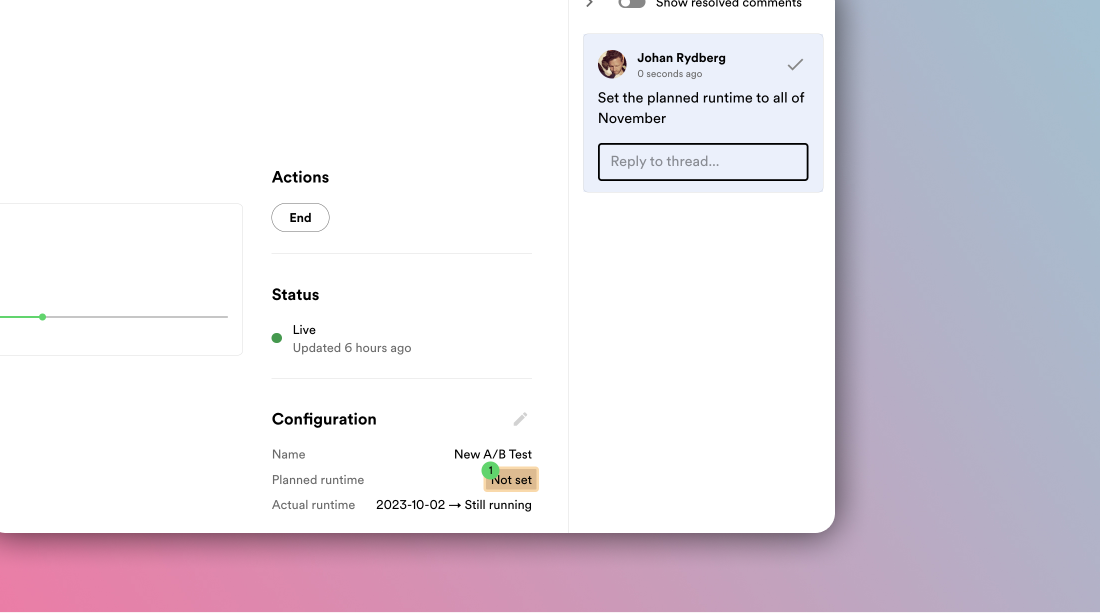
> With comments you can work together on your experiment with team mates. Add comments to the experiment design or its results.
 Get pinged on Slack when someone mentions you or replies to your comment by [connecting your personal Slack account with
Confidence](/docs/how-to-guides/connect-personal-slack).
## Overview
Comments and reviews are a great way to work together on your experiment with teammates.
You can comment on "comment zones" on the experiment pages or by submitting a review. To see which comment zones are available, click the comment icon in the top right and you see the zones highlight for a brief second. As you hover over comment zones on the page, they highlight and you can click to add a comment. To comment by submitting a review, click the thumbs up and down icon on the sidebar.
If a comment zone already has a comment, it has a badge with the number of threads on it. Clicking on the badge opens the comment sidebar and selects the thread so that you can add a comment to it.
## Add a Comment
To add a comment to the experiment, click the comment icon in the top right corner of the experiment design.
To add a comment:
1. Go to a workflow such as an A/B test or rollout.
2. Click on the comment icon next to the experiment name. The comment sidebar opens on the right side of the page.
3. Click on a comment zone on the workflow where you want to add a comment. The zones flash briefly when you open the sidebar to indicate where you can add comments.
4. Type your comment and press Shift + Enter to post.
Mention a team mate in a comment by typing @
and selecting their name from the list. A mentioned team mate can be assigned to the thread. Assigned threads shows up on the user's home page under the "Your to-do list" section.
## Comment on a Thread
Threads organize comments for you. A thread is a group of related comments. You can add a comment to a thread by selecting it, which reveals an input field where you can type your comment.
## Resolve Threads
You can resolve a thread by clicking the checkmark icon in the top right corner of the thread. Resolved threads are by default hidden. You can show resolved threads by toggling the `Show resolved threads` switch in the top right corner of the comments section.
## Comments in Reviews
When you review an experiment, you can add a comment with [the review](./reviews). This comment shows up in the comment section like all other comments.
## Related Resources
Request and give reviews
Get comment notifications
Share experiment findings
Configure notification settings
Get pinged on Slack when someone mentions you or replies to your comment by [connecting your personal Slack account with
Confidence](/docs/how-to-guides/connect-personal-slack).
## Overview
Comments and reviews are a great way to work together on your experiment with teammates.
You can comment on "comment zones" on the experiment pages or by submitting a review. To see which comment zones are available, click the comment icon in the top right and you see the zones highlight for a brief second. As you hover over comment zones on the page, they highlight and you can click to add a comment. To comment by submitting a review, click the thumbs up and down icon on the sidebar.
If a comment zone already has a comment, it has a badge with the number of threads on it. Clicking on the badge opens the comment sidebar and selects the thread so that you can add a comment to it.
## Add a Comment
To add a comment to the experiment, click the comment icon in the top right corner of the experiment design.
To add a comment:
1. Go to a workflow such as an A/B test or rollout.
2. Click on the comment icon next to the experiment name. The comment sidebar opens on the right side of the page.
3. Click on a comment zone on the workflow where you want to add a comment. The zones flash briefly when you open the sidebar to indicate where you can add comments.
4. Type your comment and press Shift + Enter to post.
Mention a team mate in a comment by typing @
and selecting their name from the list. A mentioned team mate can be assigned to the thread. Assigned threads shows up on the user's home page under the "Your to-do list" section.
## Comment on a Thread
Threads organize comments for you. A thread is a group of related comments. You can add a comment to a thread by selecting it, which reveals an input field where you can type your comment.
## Resolve Threads
You can resolve a thread by clicking the checkmark icon in the top right corner of the thread. Resolved threads are by default hidden. You can show resolved threads by toggling the `Show resolved threads` switch in the top right corner of the comments section.
## Comments in Reviews
When you review an experiment, you can add a comment with [the review](./reviews). This comment shows up in the comment section like all other comments.
## Related Resources
Request and give reviews
Get comment notifications
Share experiment findings
Configure notification settings